
The majority of our multi size tiled and A0 PDF patterns include layers, allowing you to choose which sizes are visible before printing. This is particularly useful when you are working between sizes or want a cleaner pattern showing only the sizes you need.

How to select size layers:
1. Open your PDF pattern
Open the pattern in Adobe Acrobat Reader (free to download here). Layers may not work correctly in some web browsers or alternative PDF viewers.
2. Open the Layers panel
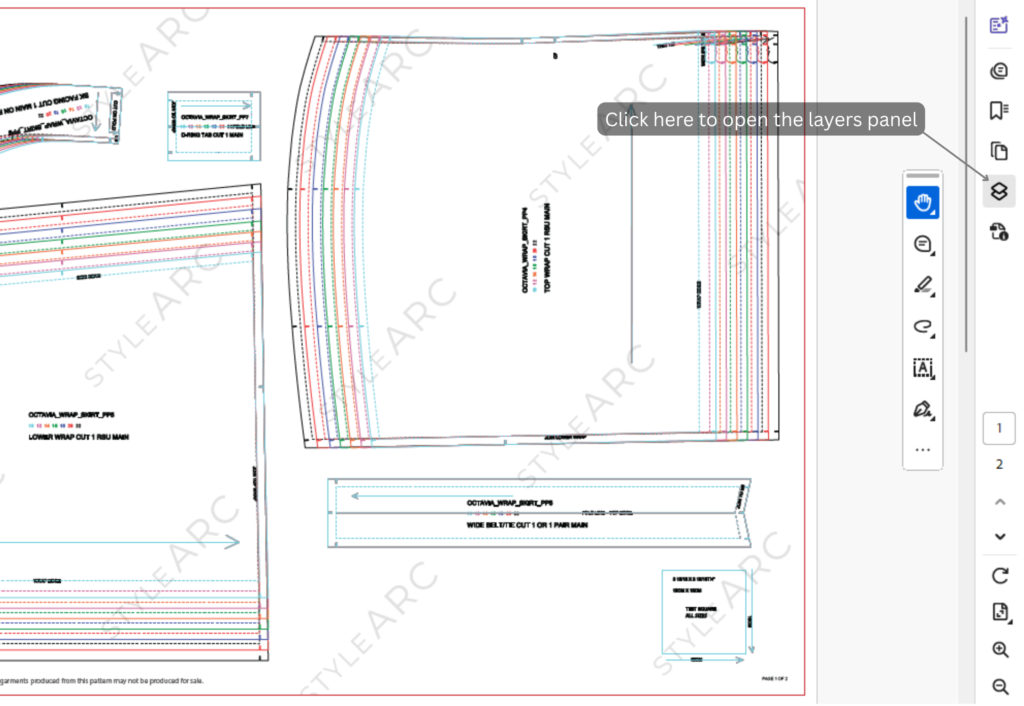
In Adobe Acrobat Reader, open the Layers panel. If it isn’t visible, go to:
View → Show/Hide → Side Panels → Layers
The Layers panel will display the different layers available in the pattern.
3. Select the sizes you need
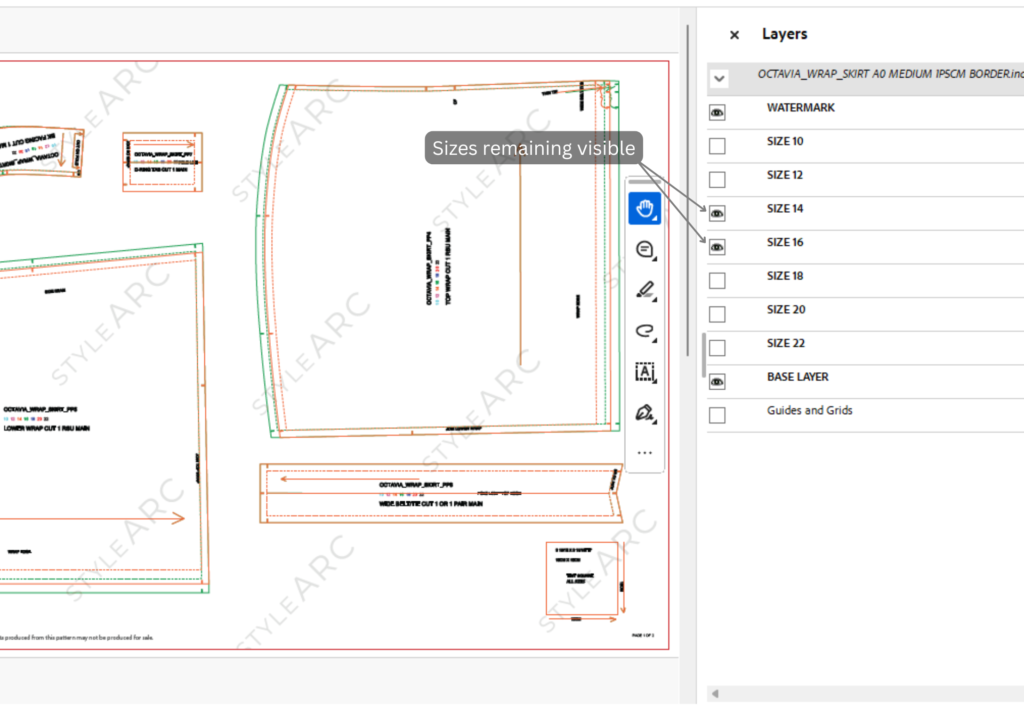
Each size has an eye icon beside it.
Eye visible: The layer is switched on and the size will be visible.
Eye hidden: The layer is switched off and the size will not be visible.
Click the eye icon to turn a size on or off.
You can leave multiple sizes switched on if you need to compare or grade between sizes.
4. Keep the pattern information visible
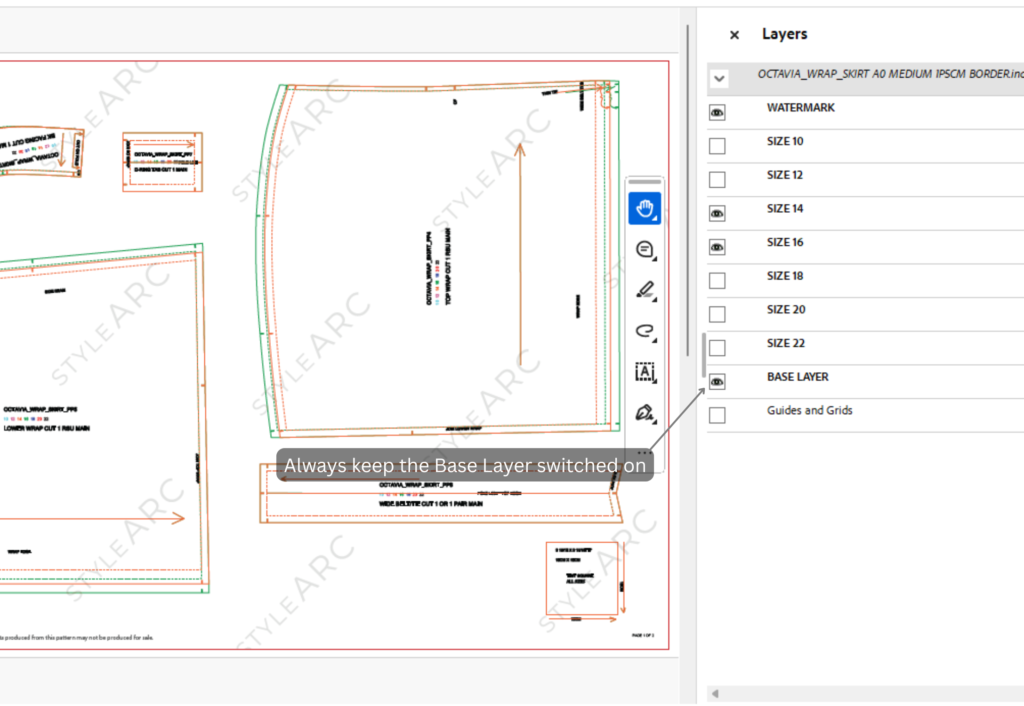
As well as the size layers, your pattern contains a layer titled Base Layer for important pattern information such as grainlines, notches, markings and pattern-piece information.
Keep the Base Layer switched on when printing so you don’t leave out essential information.
5. Check before printing
Once you have selected your sizes, move through the PDF and check that the correct pattern pieces and markings are visible.
When you’re ready to print, make sure your printer is set to Actual Size or 100%. Do not select Fit to Page, as this will alter the pattern scale. For more information/help with printing click here.
A note about layers
Turning layers on and off only changes what is visible on screen and what is printed. It does not alter the pattern itself or change the size of the pattern pieces.
This gives you a cleaner printout (and will save on ink) while keeping the original multi-size PDF pattern intact.